
Home›Help Center›Sending a Fax
Help Center
Sending a fax.
Two ways to send a fax from your computer — print to the fax printer, or use the Send Fax button in the app. Both finish in the same window.
How it works
Two ways to send
You can print any document to the Communicator Fax printer, or click Send Fax inside BoomTalk. Either route lands you in the same Send Fax window. First, make sure BoomTalk is open.
Open BoomTalk
 Double-click the BoomTalk iconIt has to be running for faxing to work. Sign in if you're asked to.
Print to the fax printer
Best when the document is already open — a Word file, a PDF, a web page, anything you can print.
-
1
Open your document and print it
Open the file you want to fax, then print it the normal way — Ctrl + P, or File › Print.
-
2
Choose the Communicator Fax printer
In the printer list, pick Communicator Fax instead of your usual printer, then click Print.
Where is it?Communicator Fax sits in your printer list like any other printer — it's installed alongside the app. Nothing comes out on paper; the document is handed to BoomTalk instead.
-
3
The Send Fax window opens
BoomTalk opens the Send Fax window with your document already attached. Skip ahead to filling it in.
Send Fax from inside BoomTalk
-
1
Open the Send Fax window
In the BoomTalk window, click the ⋮ More button at the right of the toolbar, then choose Send Fax.
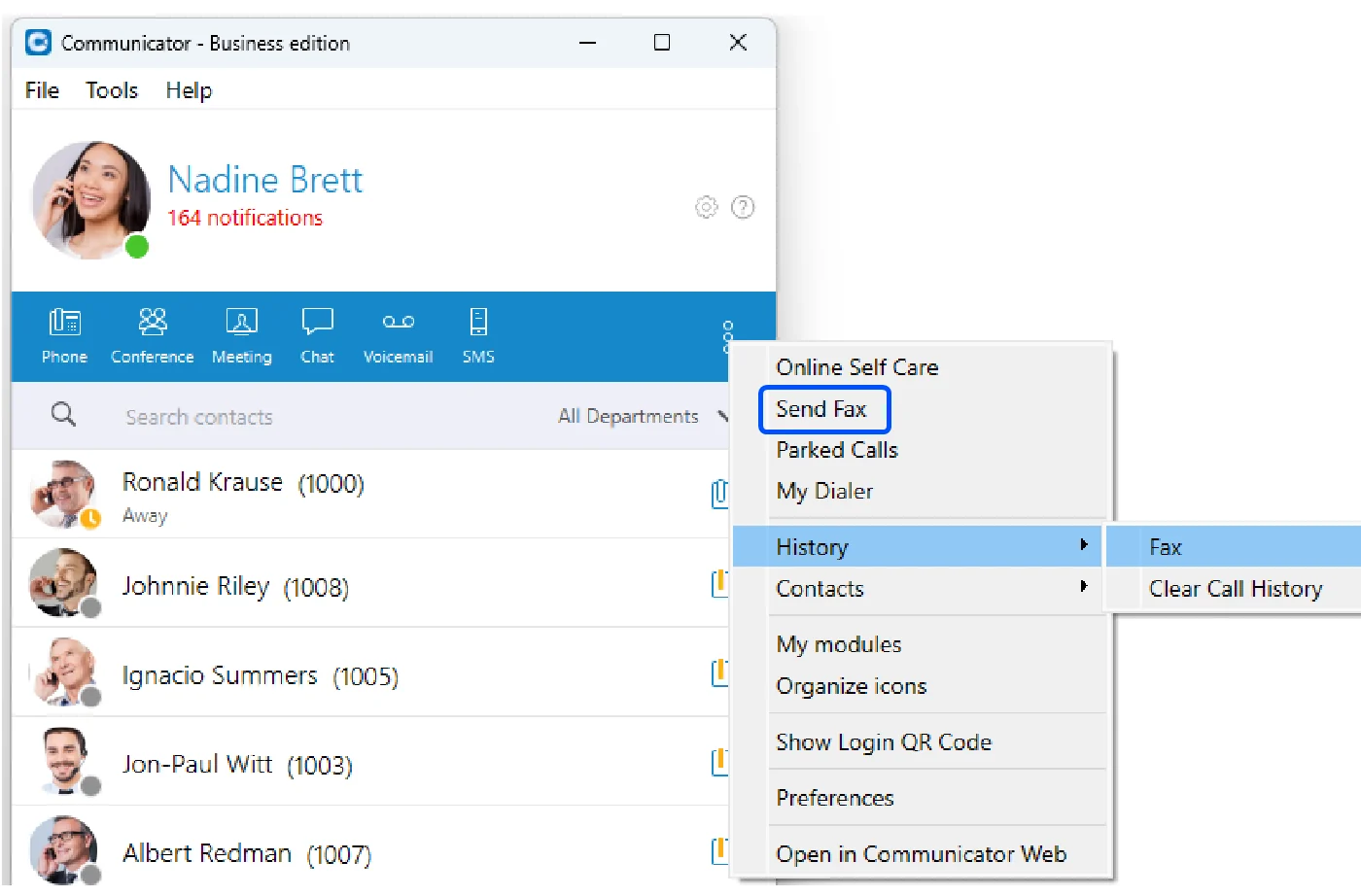
The ⋮ More menu — choose Send Fax -
2
Pick the file to send
In the Send Fax window, click the folder icon next to PDF file and choose the PDF you want to fax.
Then carry on below.
Then
Fill in your fax and send it
However you opened it, the Send Fax window works exactly the same way.
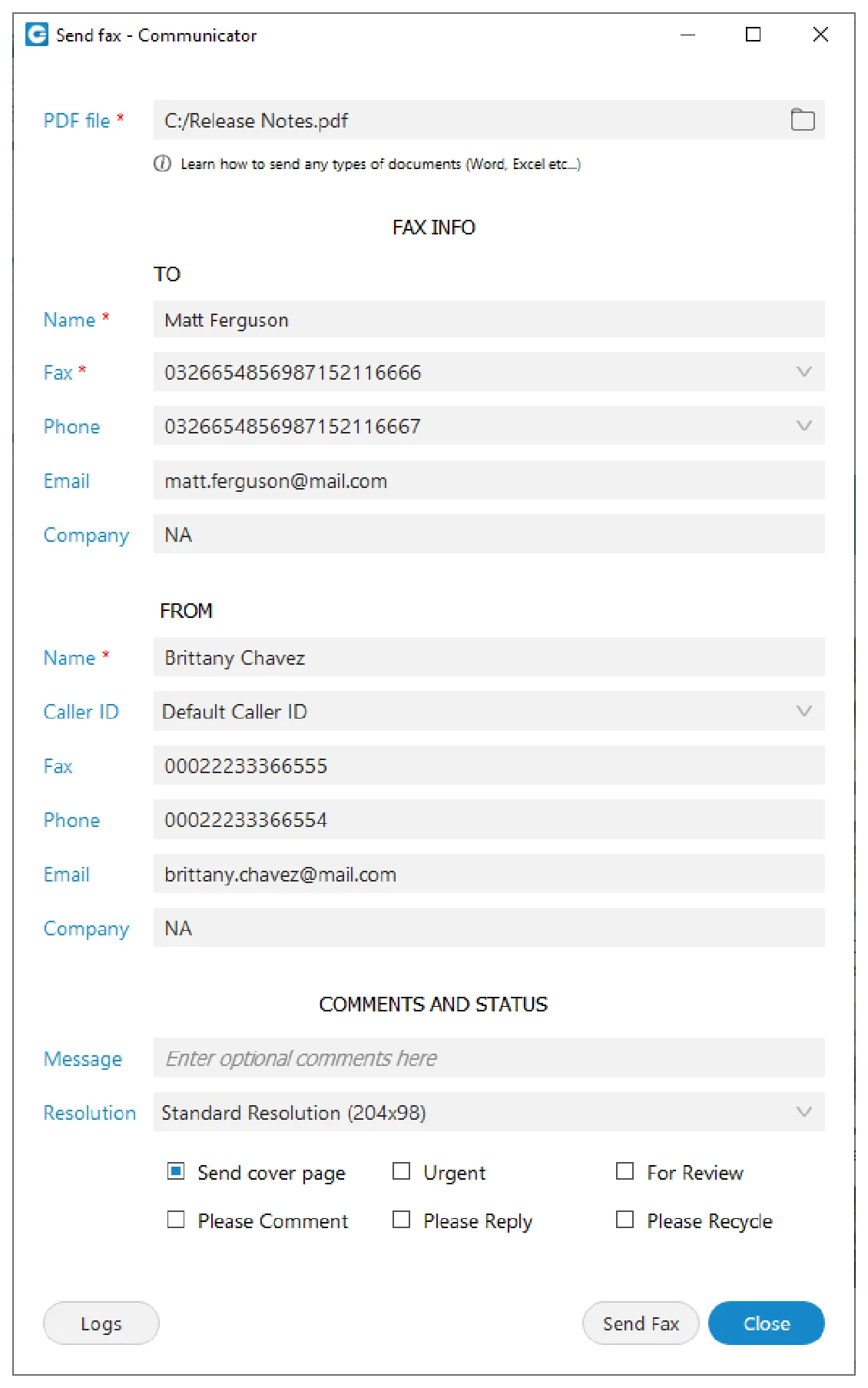
In the TO section, type the recipient's Name and Fax number. Those two carry a red * — they're required. Phone, email and company are optional.
In the FROM section your name fills in automatically — just pick your Caller ID from the drop-down. Tick Send cover page if you'd like a cover sheet.
When it all looks right, click Send Fax.
Watch it send
BoomTalk shows the fax going through, one page at a time.
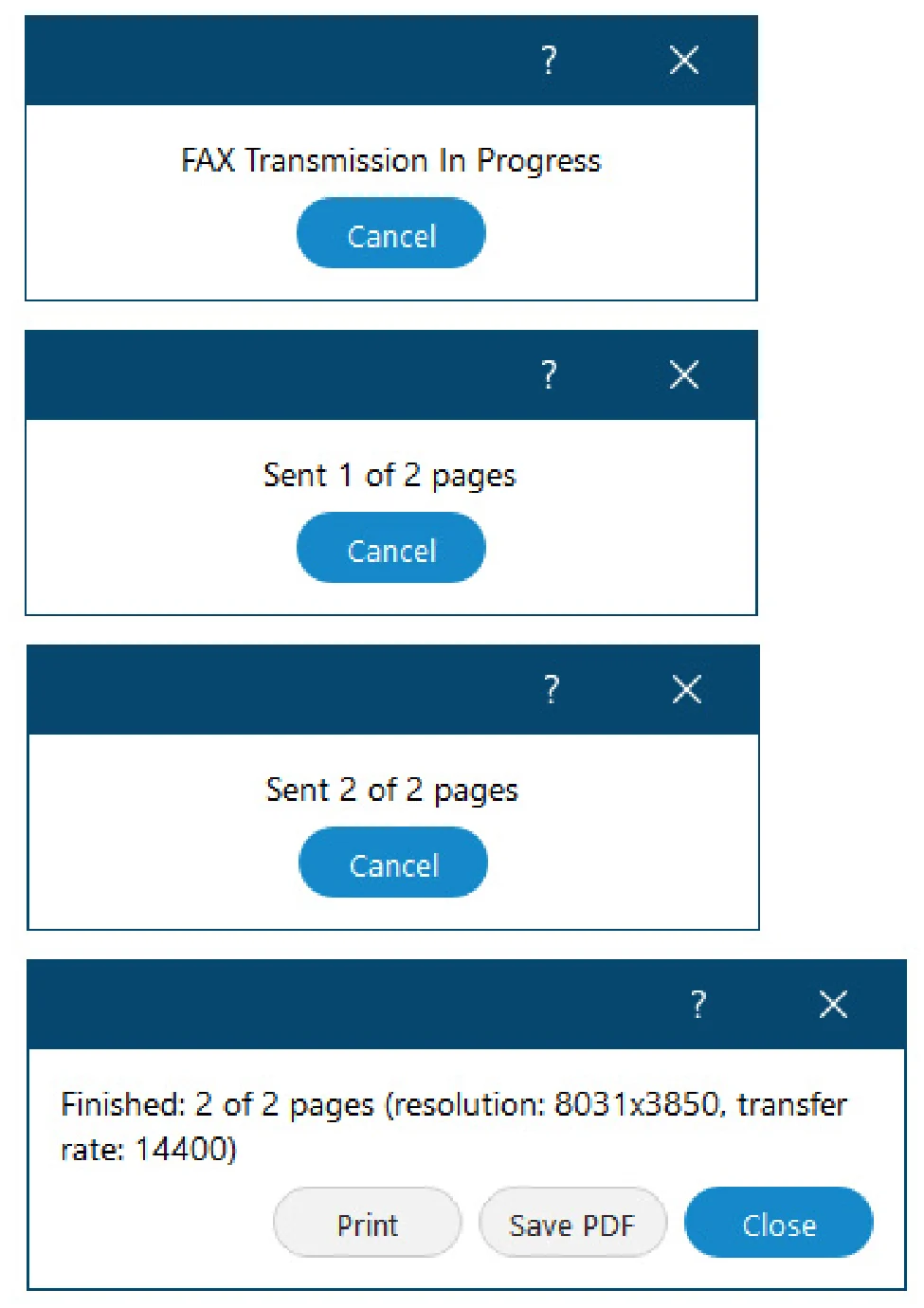
When it says Finished, your fax has gone. Click Save PDF to keep a copy or Print a receipt, then Close.
Good to know
Finding faxes you've received
Incoming faxes are kept in BoomTalk too.
Click the ⋮ More button, then choose History › Fax to open your Fax Documents list.
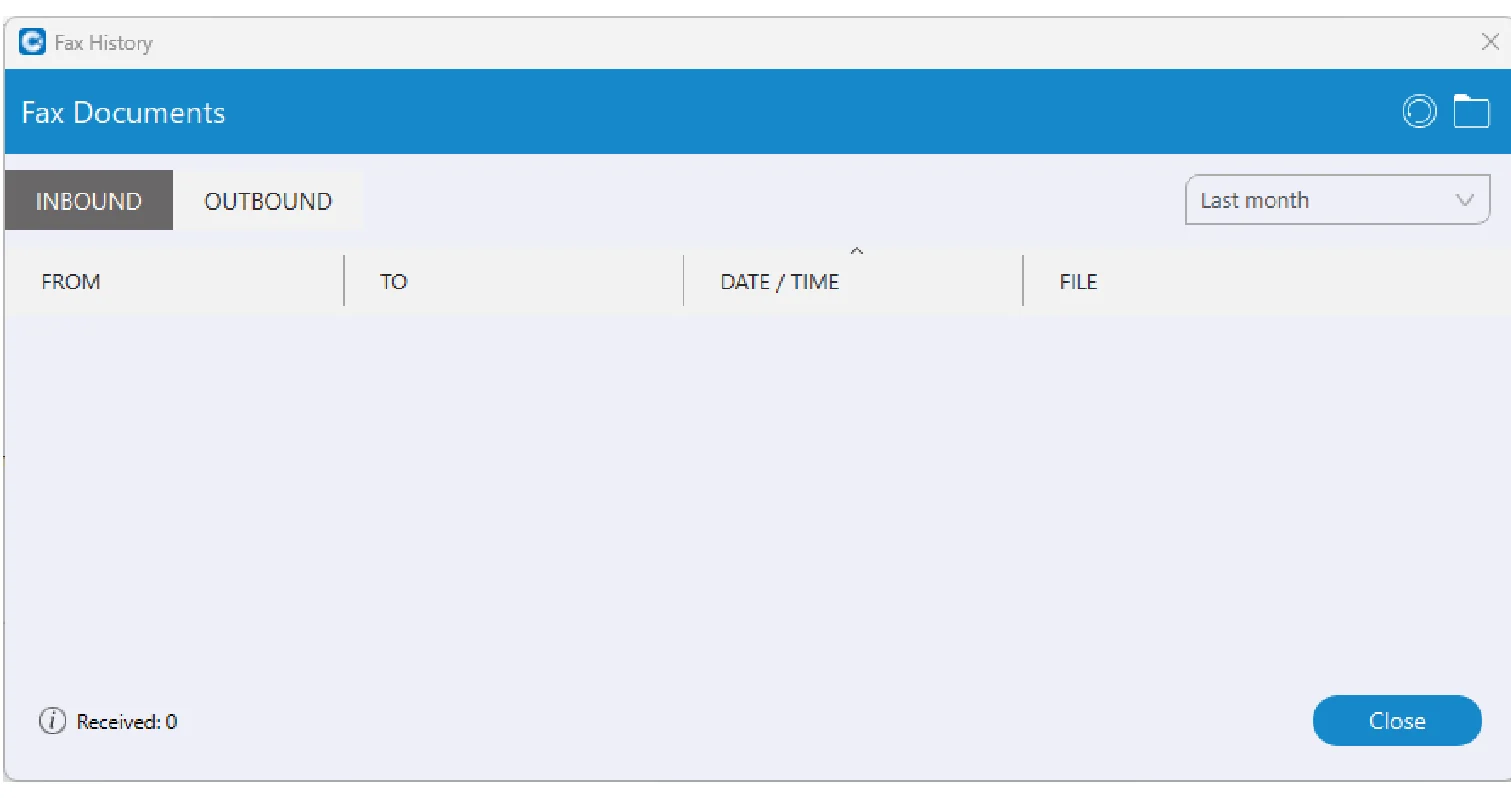
Use the Inbound tab for faxes you've received and Outbound for ones you've sent. The date drop-down at the top right helps you dig out older ones.
Your fax is on its way
No fax machine required. If a fax won't go through, check the number includes the area code — then ask your system administrator.