Home›Help Center›Getting Started
First-time setup
Let's get you signed in.
Seven steps to your first BoomTalk sign-in. It takes about two minutes, and every screen you'll see is pictured below.
Start here
Find your welcome email
Look for the email with the subject “Welcome to BoomTalk!” — it looks like the one below. Keep it open while you work through the steps: you'll copy your email, password, and login server straight out of it.

Hi Sam Rivera, your account is ready to go.
STEP 1Use these for your first login. You'll be asked to create a new password once you're signed in.
Temporary — you'll replace it in step 4
Dial *123 to pick up voicemail
Needed when setting up the desktop app on Windows or Mac
Step by step
Set up BoomTalk in 7 steps
Work through these in order. Each one tells you what to click and what you should see on screen.
-
1
Open BoomTalk
Find the BoomTalk icon on your desktop and double-click it.
 This is the iconLook for it on your desktop and double-click.
You'll see: a setup window called the Profile Wizard. Click Next to begin.
This is the iconLook for it on your desktop and double-click.
You'll see: a setup window called the Profile Wizard. Click Next to begin.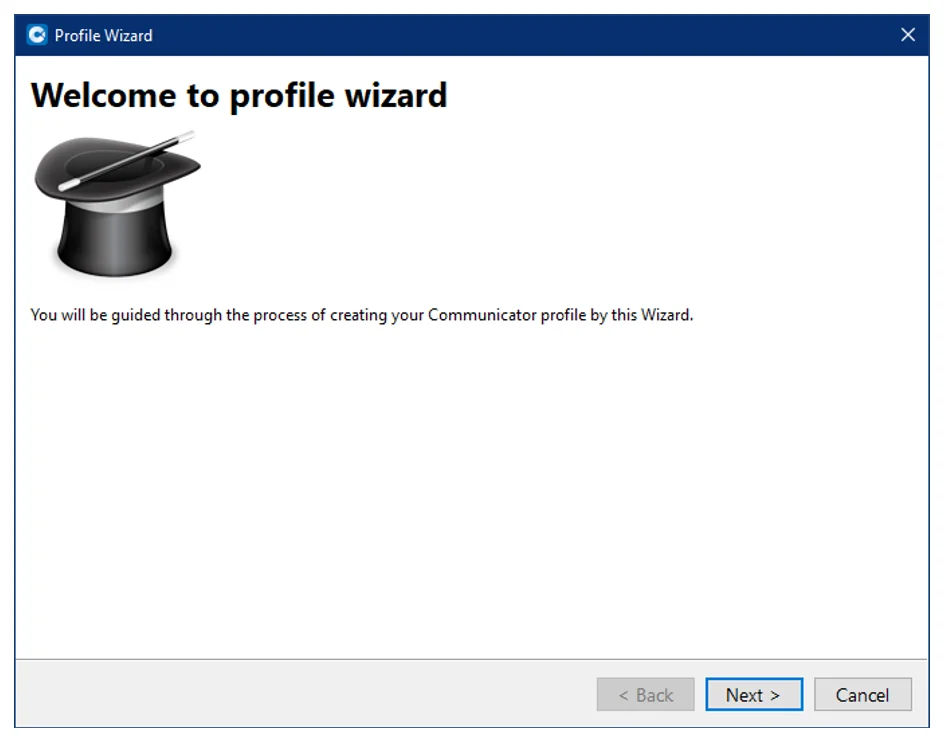
The Profile Wizard — click Next -
2
Enter your email and password
On the Account details screen, type in the email address and temporary password from your welcome email.
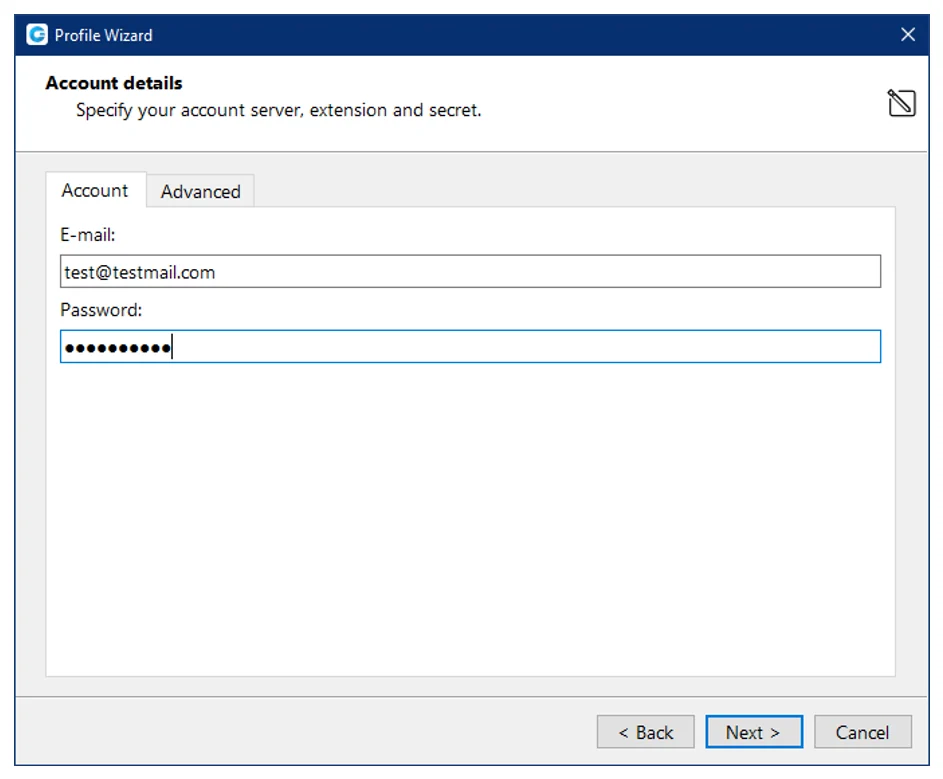
The Account tab — your email and password Copy it exactly. Capital letters and symbols matter, so type the password just as it's written — or paste it. -
3
Add your login server
On the same screen, click the Advanced tab to reveal more options, then fill in the server box.
Server addressEnter the login server address from your welcome email into the Login server box, exactly as it appears there.
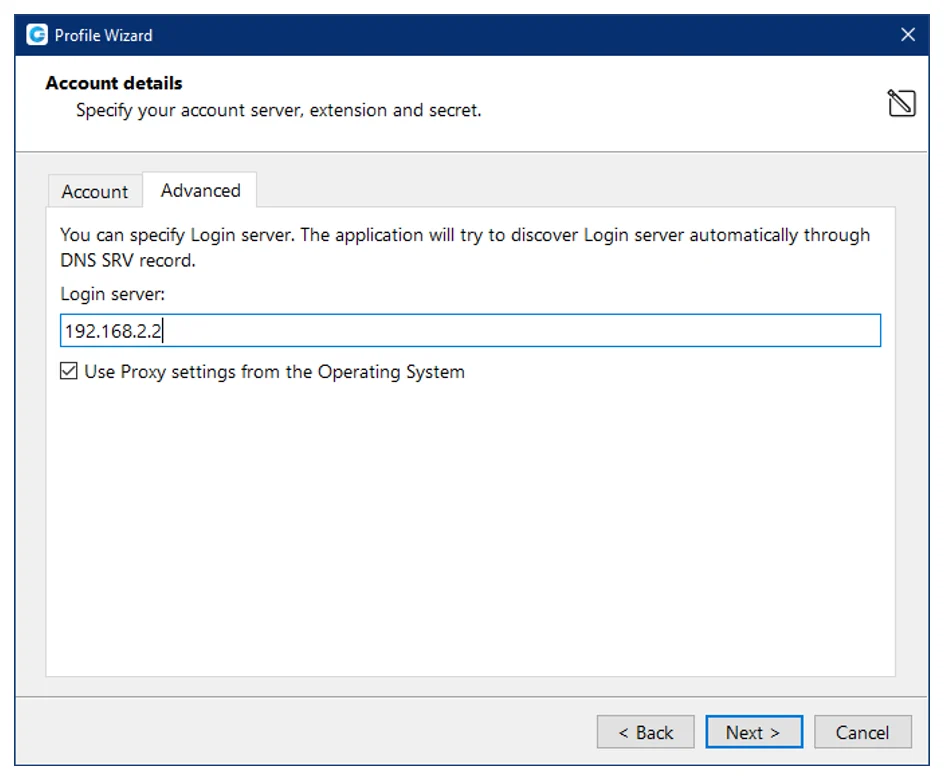
The Advanced tab — enter the login server from your welcome email Once it's filled in, click Next. BoomTalk will connect to the server.
If a red message appears, one of your details is slightly off. Check the email, password, and server address against your welcome email and try again. -
4
Create your own password
Because this is your first sign-in, BoomTalk asks you to set a new password.
Make it at least 8 characters and mix in capitals, numbers, and a symbol until the strength bar is happy.
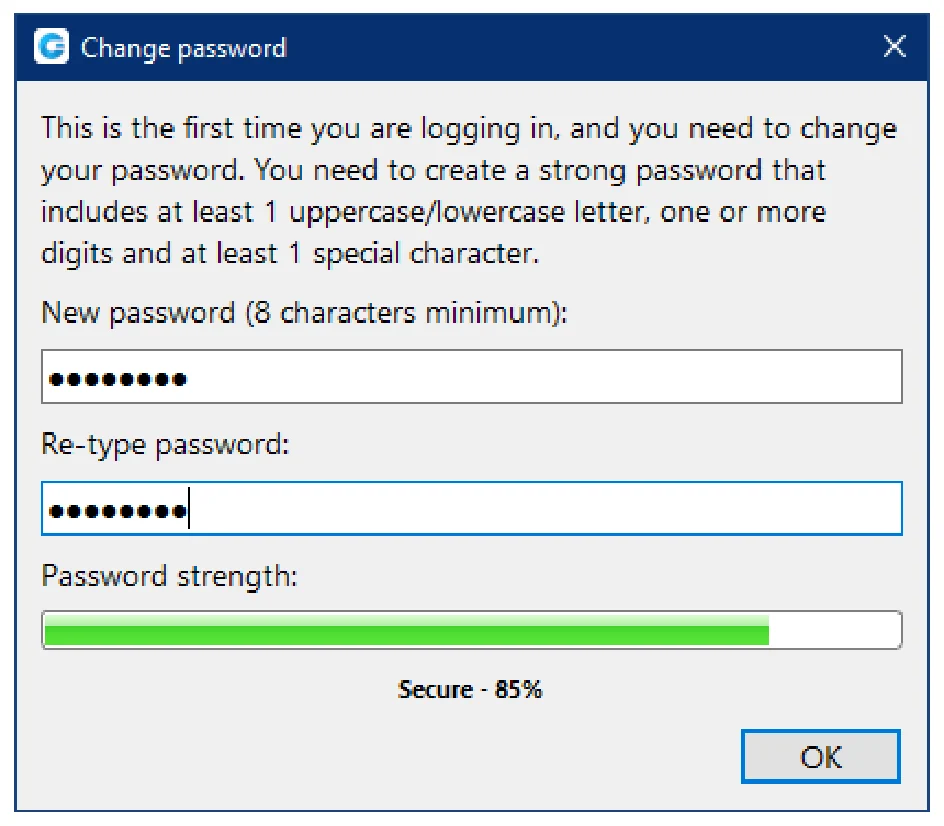
Aim for a strong password Only you will know this password. Not even your administrator can see it — so store it somewhere safe. -
5
Choose your edition
BoomTalk asks which edition to use. Pick the one your administrator told you to select.
Not sure which? Ask your administrator — they'll know which edition your account is licensed for. Then click Next.
-
6
Set up your phone
Choose how you want to make and answer calls.
For most people that's Softphone — it lets you call from your computer with a headset. If you have a physical desk phone, your administrator will tell you.
You can also add your mobile number so calls reach you away from your desk. Click Next when you're done.
-
7
Check it over and finish
A Summary screen lists everything you entered. Give it a quick read to make sure it looks right.
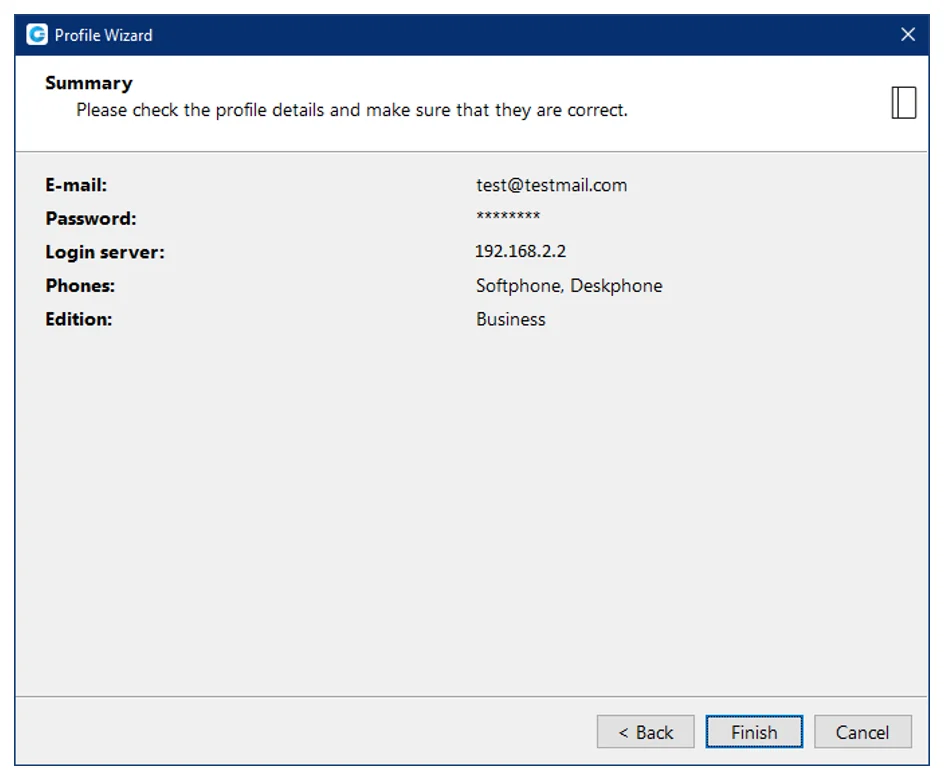
Check the details, then click Finish Then click Finish. BoomTalk signs you in automatically — and you're ready to make your first call.
You're all set
BoomTalk is ready to use. Try calling a colleague to test it. If something isn't working, your system administrator can check your account.