
Home›Help Center›Checking Voicemail
Help Center
Checking your voicemail.
Two ways to listen to your messages in the BoomTalk desktop app. Use whichever is easier — both are below.
How it works
Two ways to pick up messages
You can dial *123 from the keypad, or open the Voicemail window in the app. First, make sure BoomTalk is open.
Open BoomTalk
 Double-click the BoomTalk iconFind it on your desktop and open the app. Sign in if you're asked to.
Dial *123
-
1
Open the keypad
In the BoomTalk window, click the Phone icon in the toolbar. The keypad opens beside the app.
-
2
Dial *123 and call
Type *123 on the keypad, then press the green call button.
Prefer a shortcut? Click Access Codes at the bottom of the keypad and choose Voicemail (*123) — it dials for you.
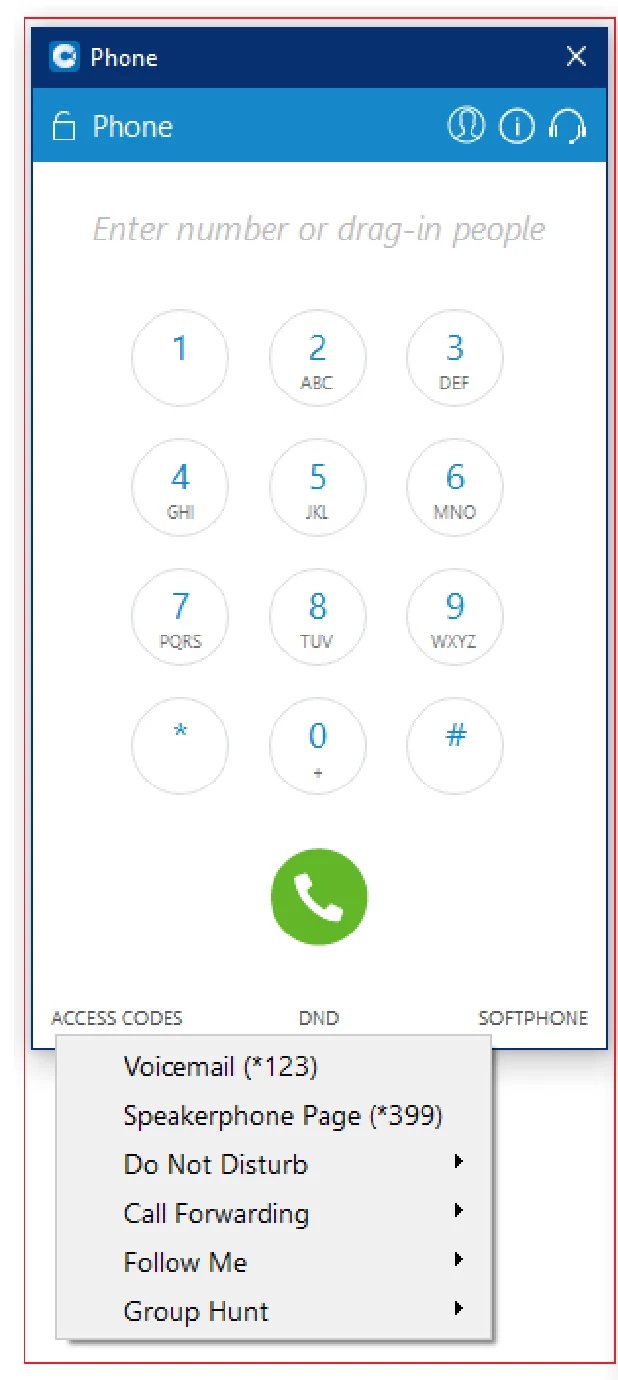
The keypad — type *123 or use Access Codes -
3
Listen to your messages
The voicemail system answers and plays your messages. Follow the spoken prompts.
If it asks for a PINEnter the Voicemail PIN from your welcome email, then press #.
Open the Voicemail window
-
1
Click the Voicemail icon
In the BoomTalk window, find the row of icons under your name and click Voicemail.
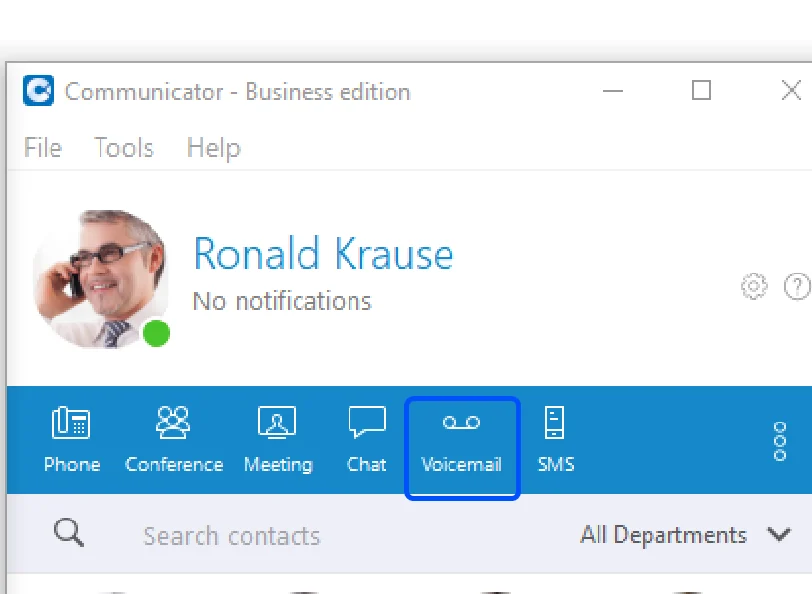
The toolbar — click Voicemail -
2
Play and manage your messages
The Voicemail window opens with your messages listed. Click one, then press play — or click anywhere on the waveform — to listen.
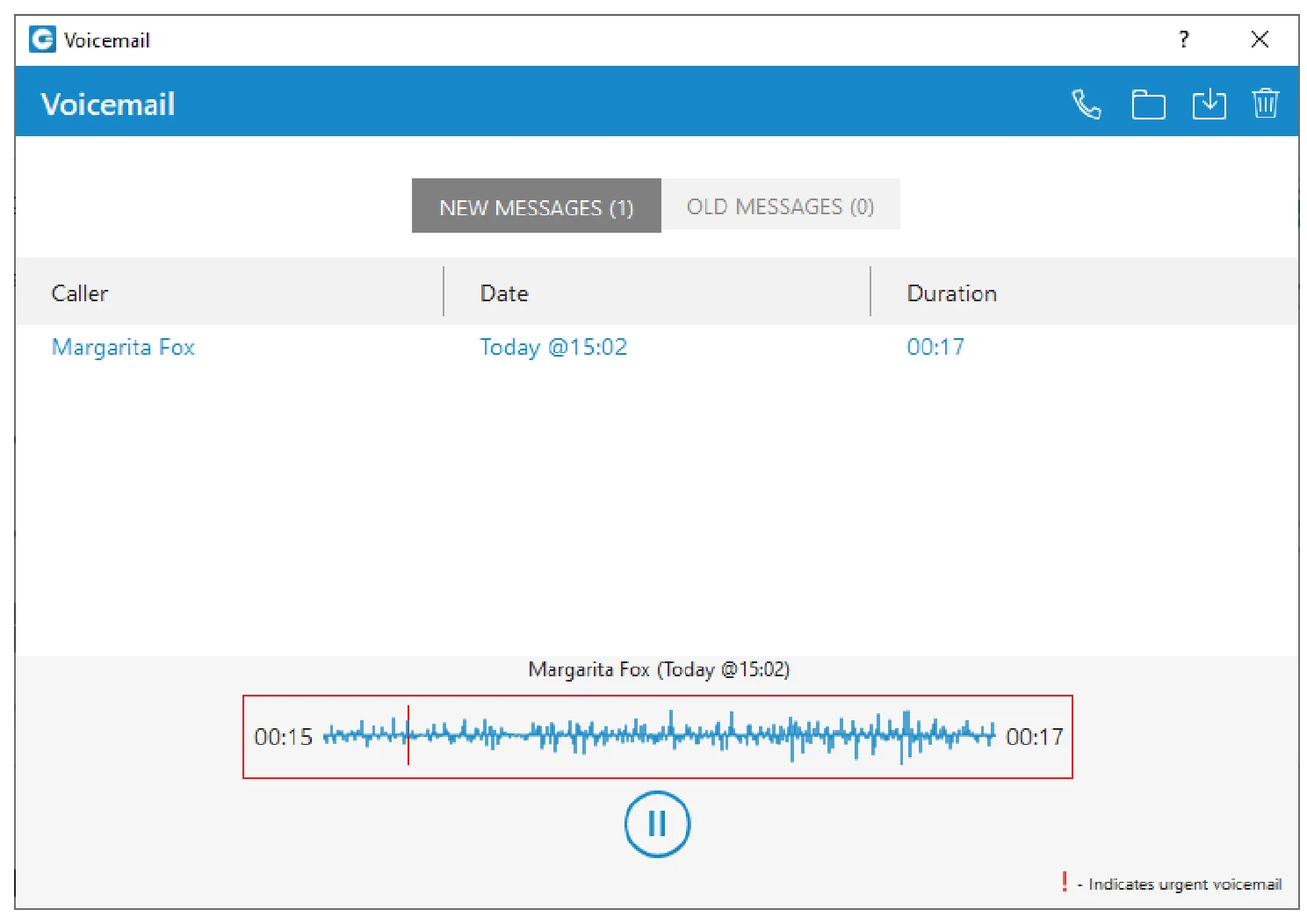
The Voicemail window The buttons at the top right of the window act on whichever message is selected:
- Play — listen to the selected message. Click along the waveform to skip back and forth.
- Call back — ring the person who left the message.
- Move to old — file it under Old messages.
- Save — download the message as a file to your computer.
- Delete — remove the message.
Switch between the New messages and Old messages tabs at the top to see each set. A red ! beside a message means it was marked urgent.Heads upDeleting a voicemail is permanent — it can't be undone. If you might need it later, use Move to old or Save instead.
That's all there is to it
Now you can pick up voicemail whichever way suits you. If messages aren't arriving, your system administrator can check how your extension is set up.